

Every A-roll edit starts with the same forty minutes of admin before you get to the part you actually enjoy.
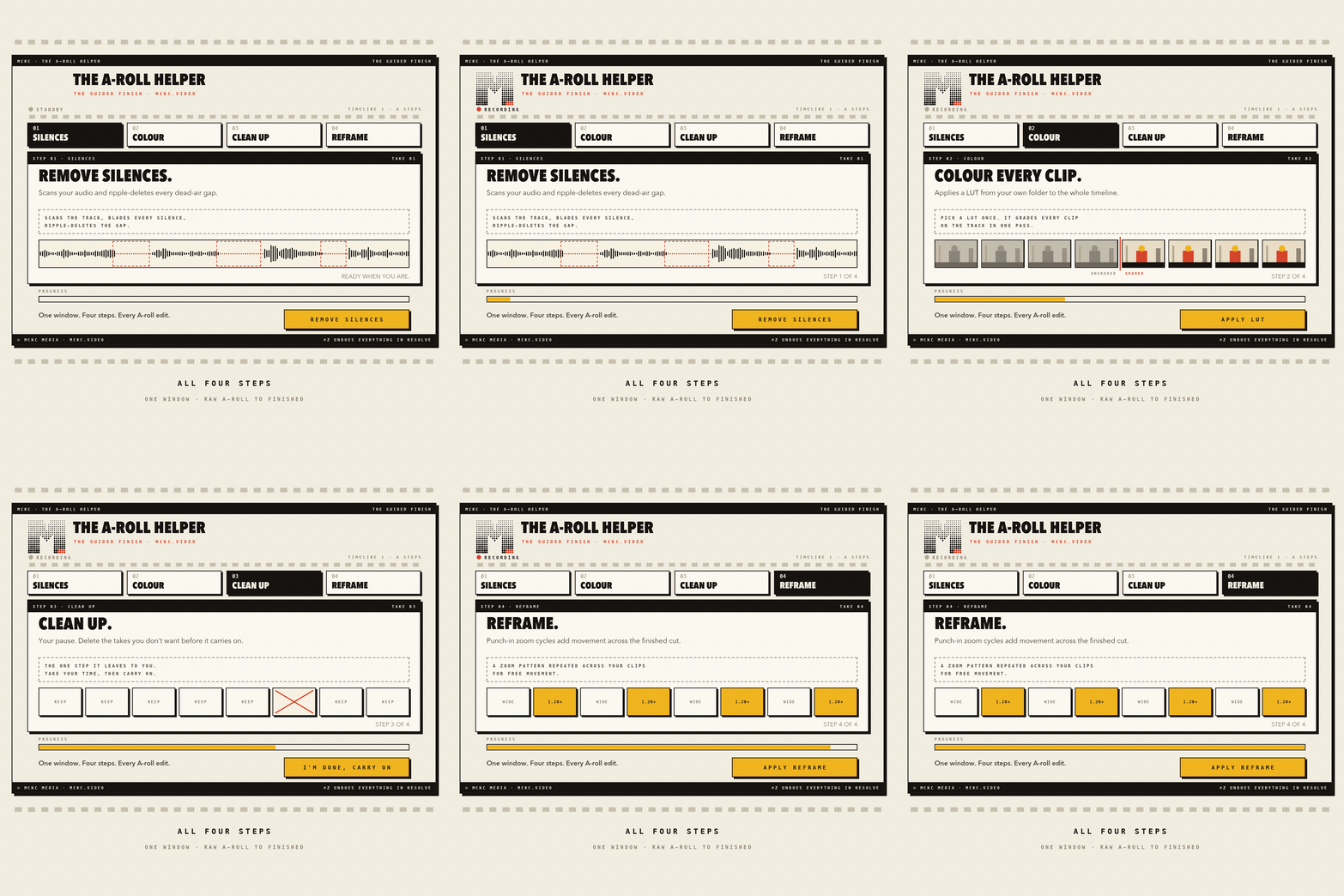
One window inside Resolve. Four steps, in the order you already work.
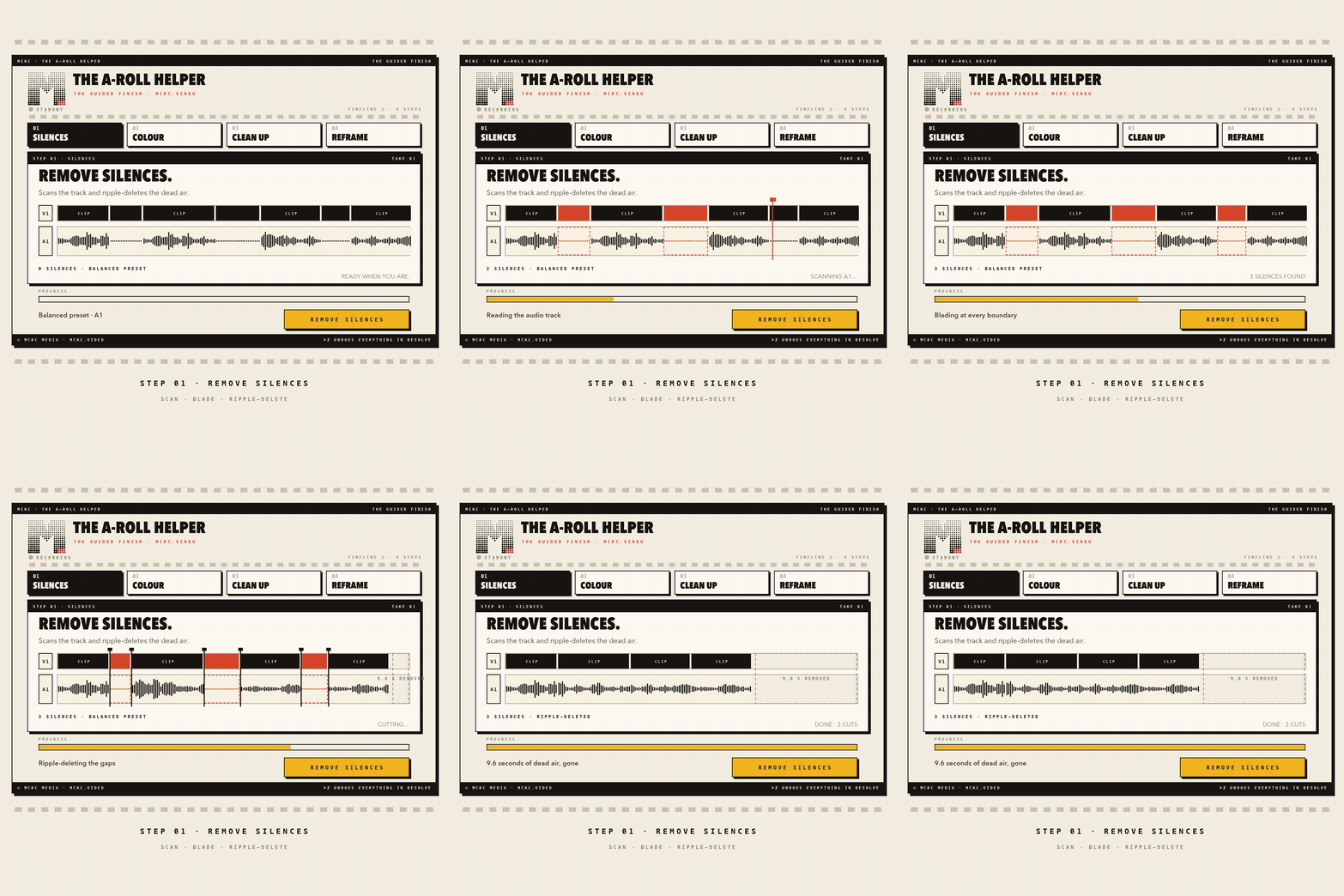
Ripple-deletes dead air. Snappy, Balanced, or Relaxed. Or run "Just mark them" first to preview with red markers, nothing touched.
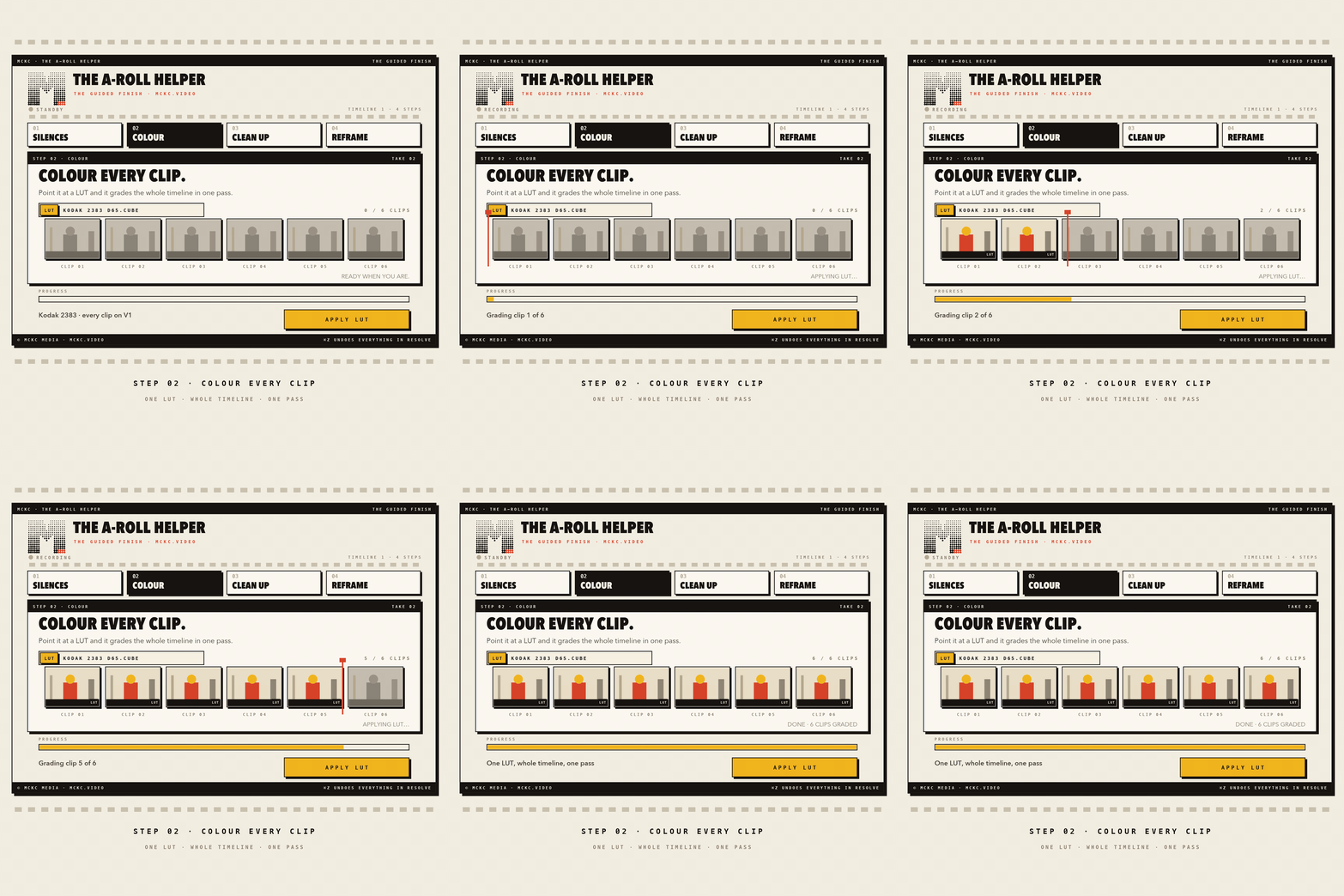
Pulls straight from Resolve's LUT folder. One click applies it to the whole timeline. Titles and generators get skipped.
No automation on purpose. This is your pause to delete bad takes. Live clip count, press Continue when done.
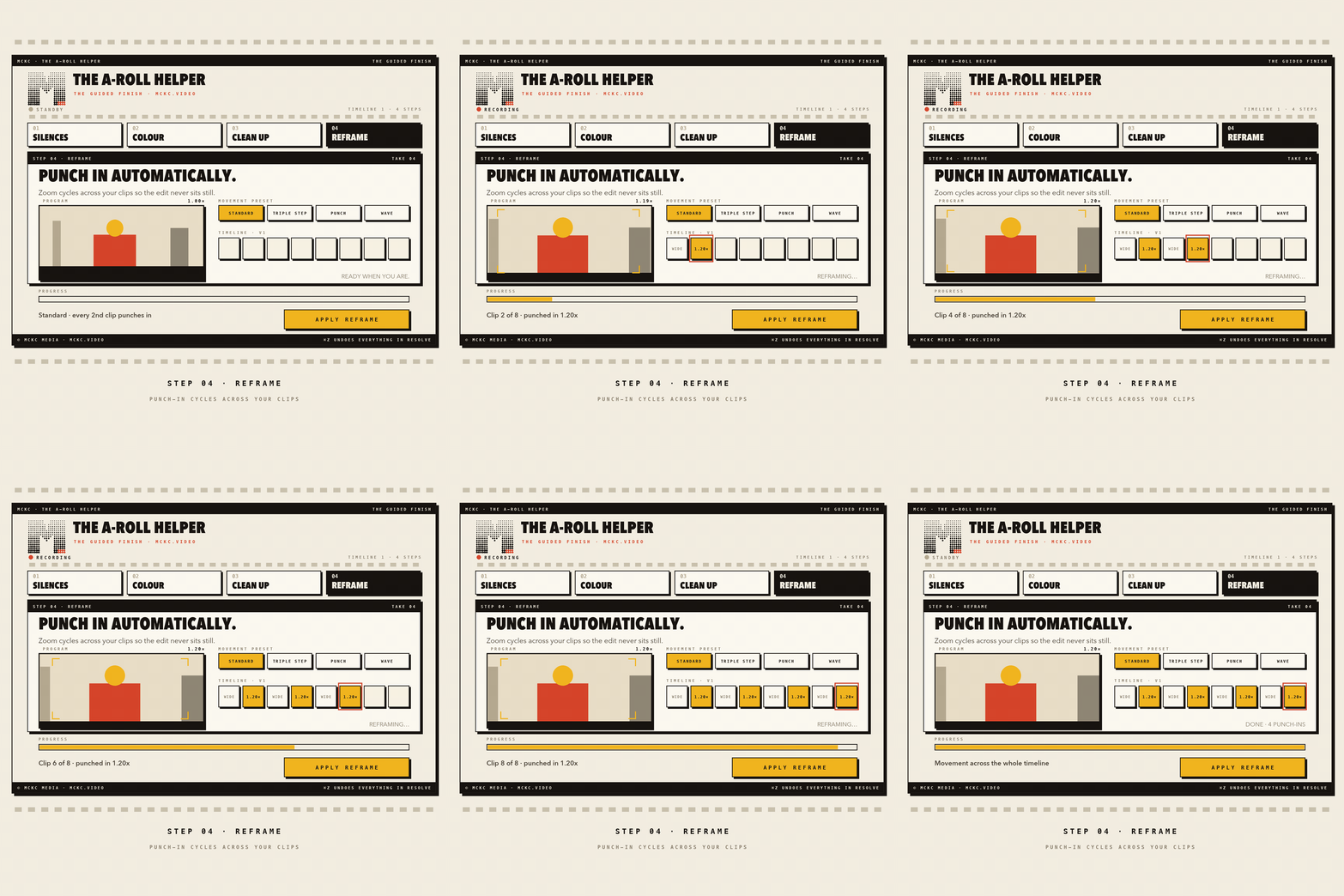
Punch-in zoom to keep it moving. Standard, Triple Step, Punch or Wave. Dry run available under Advanced.
Cmd+Z undoes all of it. Every step is just what you'd do by hand, so if you don't like it, undo and try again.
Works on part of a timeline too. Set In/Out points and tick "Only between In & Out." Each step remembers its own setting.
macOS only. Needs Python 3 and ffmpeg (installer checks and tells you what's missing).
One setup step to get right: Step 1 uses Resolve's own "Add Edit" shortcut (default Cmd+B). If yours differs, tell the plugin or nothing gets cut. Takes fifteen seconds, it's the first thing in the guide.
Not one-click. But once it's set, it just works.
macOS + DaVinci Resolve 18.5+ (Studio or free)
Python 3 and ffmpeg
~2 minutes to install
The A-Roll Helper v0.3.1 + installer
START HERE guide
Single-user licence, all your machines
Free updates for life
Preview mode to try before you touch a real timeline
Questions: mckc.video@gmail.com
Every A-roll edit starts with the same forty minutes of admin before you get to the part you actually enjoy.
One window inside Resolve. Four steps, in the order you already work.
Ripple-deletes dead air. Snappy, Balanced, or Relaxed. Or run "Just mark them" first to preview with red markers, nothing touched.
Pulls straight from Resolve's LUT folder. One click applies it to the whole timeline. Titles and generators get skipped.
No automation on purpose. This is your pause to delete bad takes. Live clip count, press Continue when done.
Punch-in zoom to keep it moving. Standard, Triple Step, Punch or Wave. Dry run available under Advanced.
Cmd+Z undoes all of it. Every step is just what you'd do by hand, so if you don't like it, undo and try again.
Works on part of a timeline too. Set In/Out points and tick "Only between In & Out." Each step remembers its own setting.
macOS only. Needs Python 3 and ffmpeg (installer checks and tells you what's missing).
One setup step to get right: Step 1 uses Resolve's own "Add Edit" shortcut (default Cmd+B). If yours differs, tell the plugin or nothing gets cut. Takes fifteen seconds, it's the first thing in the guide.
Not one-click. But once it's set, it just works.
macOS + DaVinci Resolve 18.5+ (Studio or free)
Python 3 and ffmpeg
~2 minutes to install
The A-Roll Helper v0.3.1 + installer
START HERE guide
Single-user licence, all your machines
Free updates for life
Preview mode to try before you touch a real timeline
Questions: mckc.video@gmail.com